Seedream 5.5 guide: prompts, references and how it compares with Seedream 5
By AI-0 editorial team
On this page
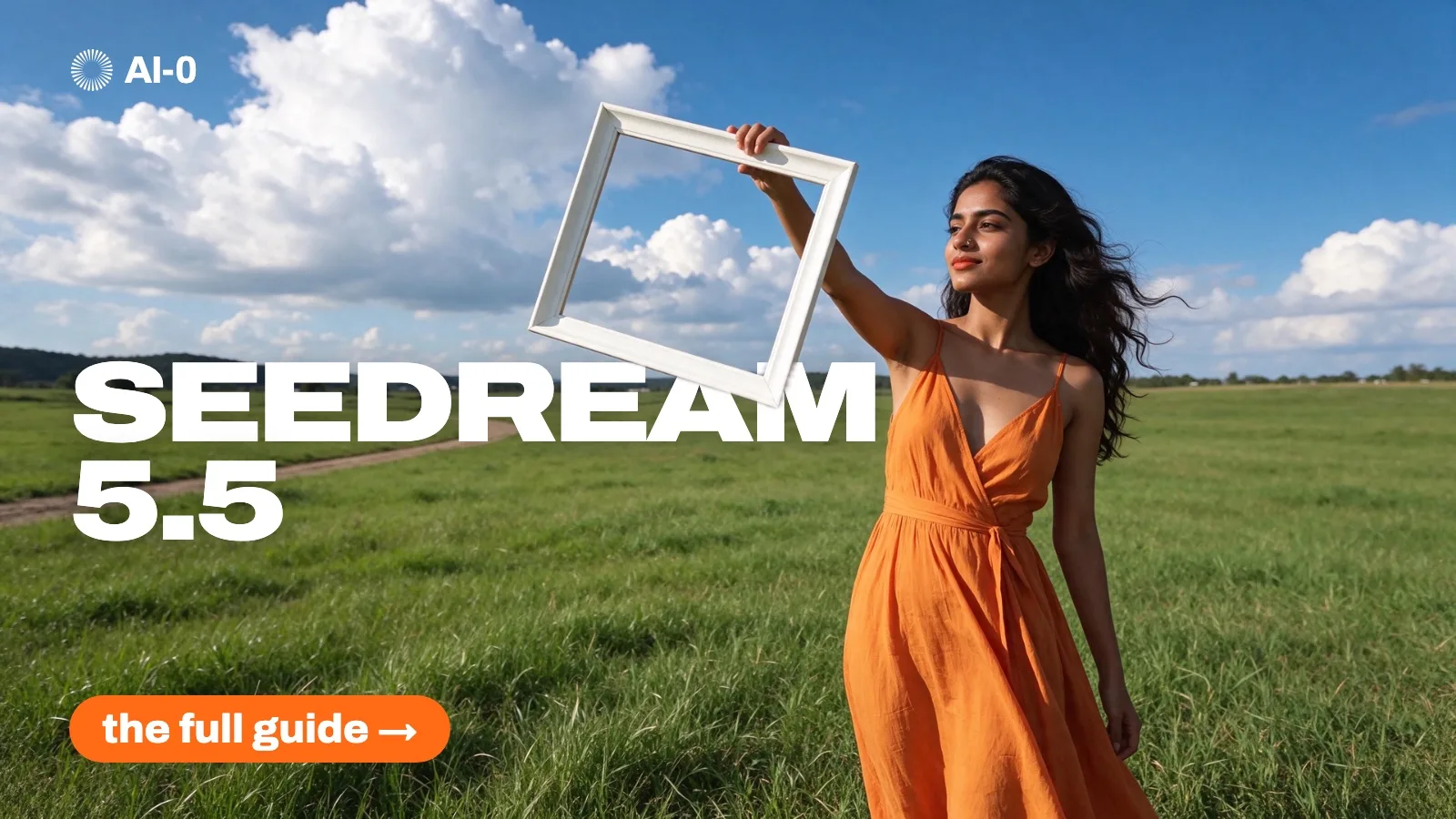
Seedream 5.5 is ByteDance's newest image model, announced on November 9, 2026. Compared with Seedream 5.0 Pro, it renders skin, light and materials more naturally, draws small text more cleanly, outputs real transparent backgrounds and holds steady across many rounds of edits. In AI-0 it takes up to 10 reference images and saves at 1K, 1.5K or 2K.
The question we hear most is which Seedream to pick, because AI-0 has four of them live: Seedream 5.5, Seedream 5 Pro, Seedream 5.0 Lite and Seedream 4.5. The names don't help. "Pro" sounds like the top of the range, yet 5.5 is newer, and ByteDance's own tests put it ahead of 5.0 Pro. We moved our Instagram carousel covers and our blog covers to Seedream 5.5 in November 2026, and this guide is what we learned doing it.
What is Seedream 5.5?
Seedream is a family of image models from ByteDance's Seed team. Version 5.5 follows Seedream 5.0, which came in several versions, including Lite and Pro. In its launch post, ByteDance makes four main claims:
- Lighting, materials and skin look more like a real photo, with less of the glossy, overexposed finish that gives AI pictures away.
- Complex characters and dense small text come out cleaner, in both English and Chinese.
- The model can output an alpha channel directly, including partial transparency, so a cut-out doesn't need a separate background removal step.
- Repeated edits keep the untouched parts of the image identical at the pixel level. ByteDance demonstrated 100 rounds of editing on one image.
ByteDance also says 5.5 beat Seedream 5.0 Pro in all six use cases it tested (e-commerce, marketing, film and TV, gaming, office work and fashion design), and that a Pro version of 5.5 will follow. These are the company's own evaluations, run on its own platform, so treat them as claims until independent tests catch up. The launch post doesn't give speeds or resolutions.
Seedream 5.5 vs Seedream 5 Pro, 5.0 Lite and 4.5
Here is how the four compare inside AI-0. The options are those at the time of writing, and the app always shows the current ones.
| Model | Best for | Output options in AI-0 | Reference images | Transparent background |
|---|---|---|---|---|
| Seedream 5.5 | Realistic people, product cut-outs, short text, edits in several passes | 1K, 1.5K, 2K | Up to 10 | Yes |
| Seedream 5 Pro | A 4K file straight from the model, infographics and dense layouts | Basic (1K), High (4K) | Up to 2 | No |
| Seedream 5.0 Lite | Long, detailed instructions and a character kept consistent | 2K, 3K | Up to 4 | No |
| Seedream 4.5 | Matching older results you made with it | Normal, High | None listed | No |
Our take: start with 5.5 for anything with a face in it, anything you want to cut out, and anything with a few words of text. It is the only Seedream in AI-0 with a transparent background option, and it takes the most references by a wide margin.
Go to Seedream 5 Pro when you need a 4K file without upscaling, or a busy layout such as an infographic, which ByteDance built 5.0 Pro for. Seedream 5.0 Lite sits between them. ByteDance pitches it on reasoning, so it is worth trying when a prompt has many parts that all have to land.
We rarely pick 4.5 now. The only good reason we know is consistency: if you made a series with it, keep using it so the new images match the old ones.
How to use Seedream 5.5 in AI-0
- Open AI-0 and tap Image on the Home screen.
- Tap the model row and choose Seedream 5.5.
- Write your prompt. The next two sections show how we structure ours.
- Add reference images if you have them, up to 10.
- Pick the aspect ratio. At the time of writing the options are Auto, 1:1, 3:4, 2:3, 9:16, 4:3, 3:2, 16:9 and 21:9.
- Pick the resolution (1K, 1.5K or 2K) and the background (Auto, Transparent or Opaque).
- Check the credit cost on the Generate button, then tap it.
- Open your history to see the result and download it.
Out of credits? Tap Earn Credits on the Home screen: each optional ad adds 5, up to 10 ads every 10 minutes. Our credits guide has the details.
How to write a Seedream 5.5 prompt for realistic people
Seedream 5.5 is good at skin, but only if you stop asking for perfect skin. This is the order we write people prompts in, and it is the same recipe we used to build a recurring AI character:
- Open with "Photorealistic real photograph".
- Describe the skin as things you can see: pores on the nose and cheeks, peach fuzz, a slight sheen only on the nose tip and lower lip.
- Name a real camera and lens.
- Give the person three or four specific features, such as a chipped front tooth, freckles across the nose or one eyebrow that sits higher.
- Describe the place, the light and what the person is doing.
- End with "Not the average AI face. No text, no logos."
A full prompt looks like this:
Photorealistic real photograph, straight from the RAW file. A 24-year-old man with a buzz cut, a thin scar through his left eyebrow, freckles across his nose and slightly crooked lower teeth, laughing at something off camera. Grey hoodie, silver ring on his right hand. Visible pores on the nose and cheeks, peach fuzz on the cheeks, a slight sheen only on the nose tip and lower lip, matte everywhere else. Late-afternoon sun from the left, a pastel-blue wall behind him. Sony A7R V, 85mm lens, head and shoulders. Not the average AI face. No text, no logos.
Leave out "perfect", "flawless", "8K" and "hyperrealistic". In our tests those words pushed results toward smooth, plastic skin, which is exactly what people now read as AI. Image models drift toward one average face, and the small, slightly odd features are what pull each picture away from it.
How to leave room for a title: the top 45% trick
For our carousel covers and blog covers we needed a person in the lower part of the frame and a clean area on top for the headline. Our first prompts asked for the subject "further back". That wasn't enough to leave a clean area for the title.
What worked was describing the empty space as part of the picture: "the top 45% of the frame is an empty plain wall". Once the wall was something the model had to draw, it drew it, and the person sat in the bottom half where we needed them.
A cover line we now use looks like this:
The top 45% of the frame is an empty plain warm-white wall with nothing on it. She stands in the lower half, framed from the chest up.
Seedream 5.5 can render text, but we still add our titles afterwards in a design tool, because changing a word then doesn't mean generating a new image. If you do want text in the image, put the exact words in quotation marks and keep it short.
How to use reference images in Seedream 5.5
At the time of writing, AI-0 lets you add up to 10 reference images to Seedream 5.5, more than any other image model in the app. Each reference adds a little to the credit cost, and the Generate button shows the total before you tap it.
More references isn't automatically better. These habits have helped us:
- Give each reference one job. One photo for the face, one for the jacket, one for the room. Then say in the prompt what each one is for: "the woman from the first photo, wearing the jacket from the second, in the kitchen from the third".
- Crop face references to the face and hair. In one of our tests, the T-shirt and earrings from a face photo replaced the outfit we asked for in the last half second of a video. Expect references to carry more than the face until you have checked.
- Describe only what changes. If the reference carries the face, don't describe the face again in detail. One short line repeating the key features is enough.
For edits, upload the image you want to change as the reference and describe only the change: "Same photo. Change the hoodie to a red rain jacket. Keep everything else the same." ByteDance's claim about pixel-level stability matters here. You can fix one thing per pass instead of rewriting a long prompt. Compare each result with the previous one at the same size before you keep going.
How to make a transparent background with Seedream 5.5
- Choose Seedream 5.5 and set Background to Transparent.
- Describe the object on its own: "a single glass perfume bottle with a gold cap, centred, nothing else in the frame".
- Leave out floors, tables and walls, since there is nothing behind the object.
- Generate at 1K first to check the edges, then make the final at 2K.
- Download it from your history and drop it on both a dark and a light background to check for halos.
Partial transparency is the interesting part. ByteDance says 5.5 can output areas that are only partly see-through, the kind you need for a glass bottle or a soft shadow. A background remover works from a finished photo, so it has to guess where the object ends. Opaque forces a solid background, and Auto lets the model decide.
If you already have the photo and only need the background gone, use AI-0's Background Remover tool instead. It is quicker than generating the object again.
Which resolution should you use: 1K, 1.5K or 2K?
Higher resolutions cost more credits, so pick for where the image will end up.
| Resolution | Use it for |
|---|---|
| 1K | Testing prompts, checking composition, quick drafts |
| 1.5K | Social posts that people will only see on a phone |
| 2K | Covers, website headers, anything you plan to crop |
We test one image at 1K before running a batch, because a bad batch wastes credits. For our Instagram posts we made the finals at 2K in 3:4.
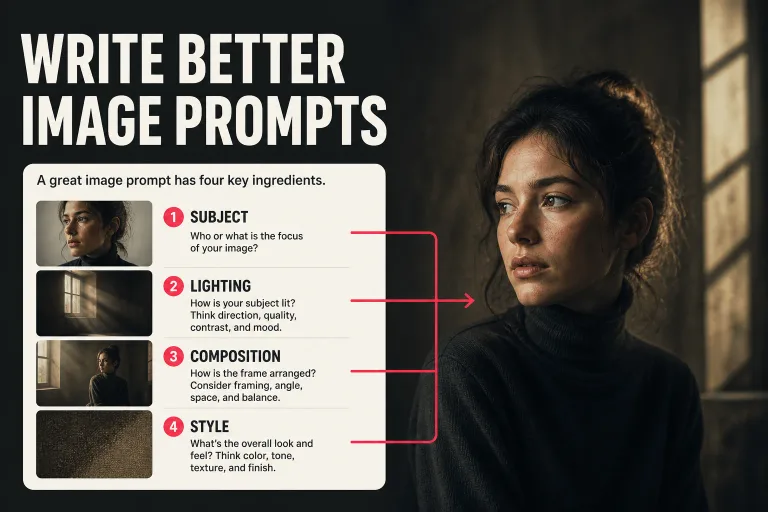
Seedream 5.5 stops at 2K in AI-0 at the time of writing. If you need a bigger file, run the result through Upscale V5 (2X, 3X or 4X), or generate with Seedream 5 Pro at High (4K) from the start. For more on structuring prompts across any model, see our AI image prompts guide.
Frequently asked questions
Is Seedream 5.5 free?
You can use Seedream 5.5 for free in AI-0 with credits earned by watching optional ads. New accounts start with 15 credits and each ad adds 5. The credit cost for each image is shown on the Generate button and depends on the resolution and the number of reference images.
What is the difference between Seedream 5.5 and Seedream 5?
Seedream 5.5 is the newer model. ByteDance says it renders skin and light more naturally, draws small text more cleanly, outputs transparent backgrounds and stays stable across repeated edits. Seedream 5.0 came in several versions, including Lite and Pro, and in AI-0 the Pro version is the one to choose when you need 4K output.
Can Seedream 5.5 make transparent backgrounds?
Yes. Seedream 5.5 can output an image with an alpha channel, including partly transparent areas, which suits glass or soft shadows. In AI-0, set the Background option to Transparent before you generate.
How many reference images can Seedream 5.5 use?
In AI-0, Seedream 5.5 accepts up to 10 reference images at the time of writing, and each one adds a little to the credit cost. You can use them for faces, products, outfits or places, and it helps to say in the prompt what each image is for.
Is Seedream 5.5 better than GPT Image 2.5?
ByteDance's own tests say Seedream 5.5 leads GPT Image 2.5 Sunburst and Nano Banana 2.1 on text structure and on realism from a text prompt. Those are the company's results, so the fair test is your own prompt on both models. We use Seedream 5.5 for our covers, and GPT Image 2.5 is still a strong choice for edits and recurring characters.
Try Seedream 5.5 on one image
Pick one image you actually need this week, write the prompt with the recipe above, and run it once at 1K. Once the composition is right, make the final at 2K. AI-0 is free to download on the App Store and Google Play, and our list of the best free AI image generator apps covers the other options.
Create on your phone with AI-0
Watch a short ad when you need credits, choose a video or image model, and create without a monthly subscription.