How to generate AI image and video completely free in 2026?
Learn how to generate AI images and videos completely free in 2026 with AI-0. Earn credits from ads, choose a model, and create on iPhone or Android.
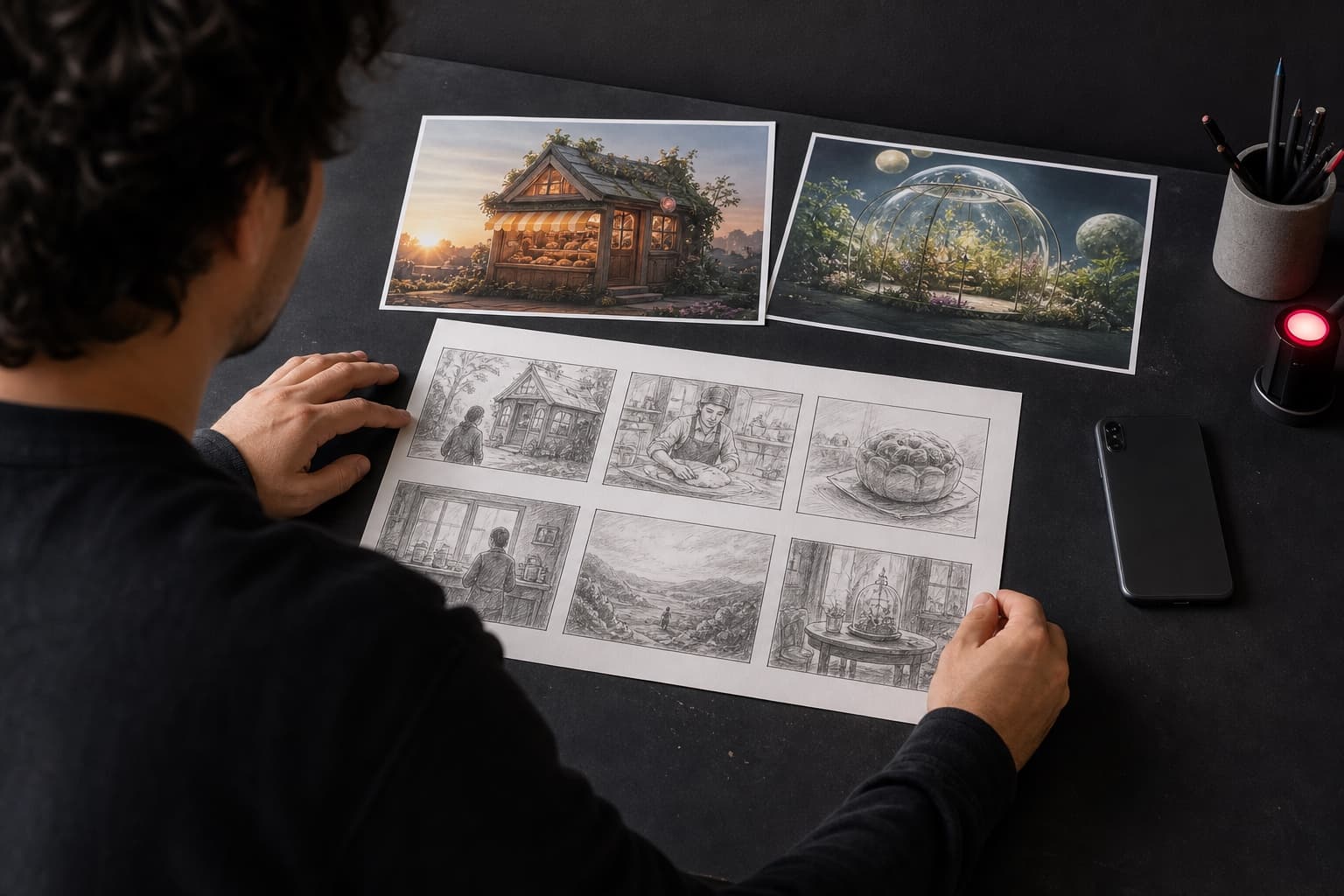
AI-0 lets you generate AI images and videos completely free in 2026 by watching optional ads, earning credits, and spending those credits on the model you choose. You do not need a monthly subscription or credit card for this route. The app is available on iPhone, iPad, and Android.
Download AI-0 for free
Start on iPhone, iPad, or Android. You can earn credits in the app before deciding whether you ever want a paid option.
 Download on the App Store
 Get it on Google Play
Most "free AI generator" searches end the same way: a tiny trial, a watermark, or a payment screen just when the result starts looking useful. AI-0 takes a different route. The app lets you trade a little time for creation credits. That trade is visible before you start, and you decide whether it is worth it.
Here is the part worth being plain about. "Unlimited" does not mean every model can run forever with no waiting. Image and video generation costs real compute. In AI-0, it means the free path has no fixed lifetime quota: earn credits, use them, and come back for more when rewards are available. Temporary ad limits and model prices still apply.
The short answer
AI-0 is a free AI image and video generator with an optional ad-supported credit system. On August 9, 2026, our iOS test showed 5 credits per ad and a limit of 10 ads every 10 minutes. Model costs varied. The app displayed 35 credits for one image setup and 45 credits for one six-second video setup.
Why AI-0 generated over 100,000 images and videos in under two months
AI-0's internal generation total crossed 100,000 image and video creations in less than two months. The figure needs context before it means much. It counts creations, not 100,000 different users, and it has not been independently audited.
Price probably did much of the work. Someone who only needs a YouTube thumbnail or a six-second clip does not have to debate another monthly subscription. They can watch an ad, earn the missing credits, and make the thing. Optional credit packs are there for people in a hurry, but they are not the only door into the app.
Then there is the way people actually make this stuff. A person rarely makes one image and walks away. They fix the framing, try a vertical version, test another model, or animate the best still image. One idea can become several deliberate generations. Putting image and video models in the same mobile app makes that easy to continue on the train, during a break, or whenever an idea shows up.
Setup is short too. There is no local GPU to configure and no model to install. These are our best explanations for the early volume, not an attempt to assign a neat percentage to each cause. What we can say for certain is that people made more than 100,000 creations without every session starting at a payment screen.
| First two months | What AI-0 recorded |
|---|---|
| Image and video generations | More than 100,000 |
| Free access route | Optional rewarded ads exchanged for credits |
| Supported mobile platforms | iPhone, iPad, and Android |
| Paid plan required | No |
Source: AI-0 internal generation total for the app's first two months. This figure was supplied by the AI-0 product team and has not been independently audited.
What "completely free" means in AI-0
| Question | Straight answer |
|---|---|
| Is a subscription required? | No. You can earn credits from optional ads. |
| Is a credit card required? | No, not for the ad-supported credit route. |
| Does every generation cost the same? | No. The model and settings determine the final cost. |
| Can I generate forever without pauses? | No. Reward availability and short limits can apply. |
| Can I keep using the free loop? | Yes, while rewards and eligible models are available. |
That distinction matters. A subscription-free workflow is useful because you can create in bursts. Make a thumbnail today, return for a short clip tomorrow, and skip the month when you do not need anything. You are not trying to "get value" from another recurring bill.
How to generate AI images and videos completely free
1. Download AI-0 and sign in
Install AI-0 from the App Store or Google Play, then sign in. You can also use the official download page. An account keeps your credit balance and generations connected to you, so you can leave the app and return later.
You do not need to choose a paid plan during this process. Start with the free account and learn how many credits your preferred models use before deciding whether you need anything else.
2. Earn free credits from the home screen
The credit card is near the top of the Home screen. It shows your current balance, the reward available for one ad, and the current reward window. Tap Earn Credits when you want to watch an ad. Once the reward is confirmed, the credits are added to your balance.
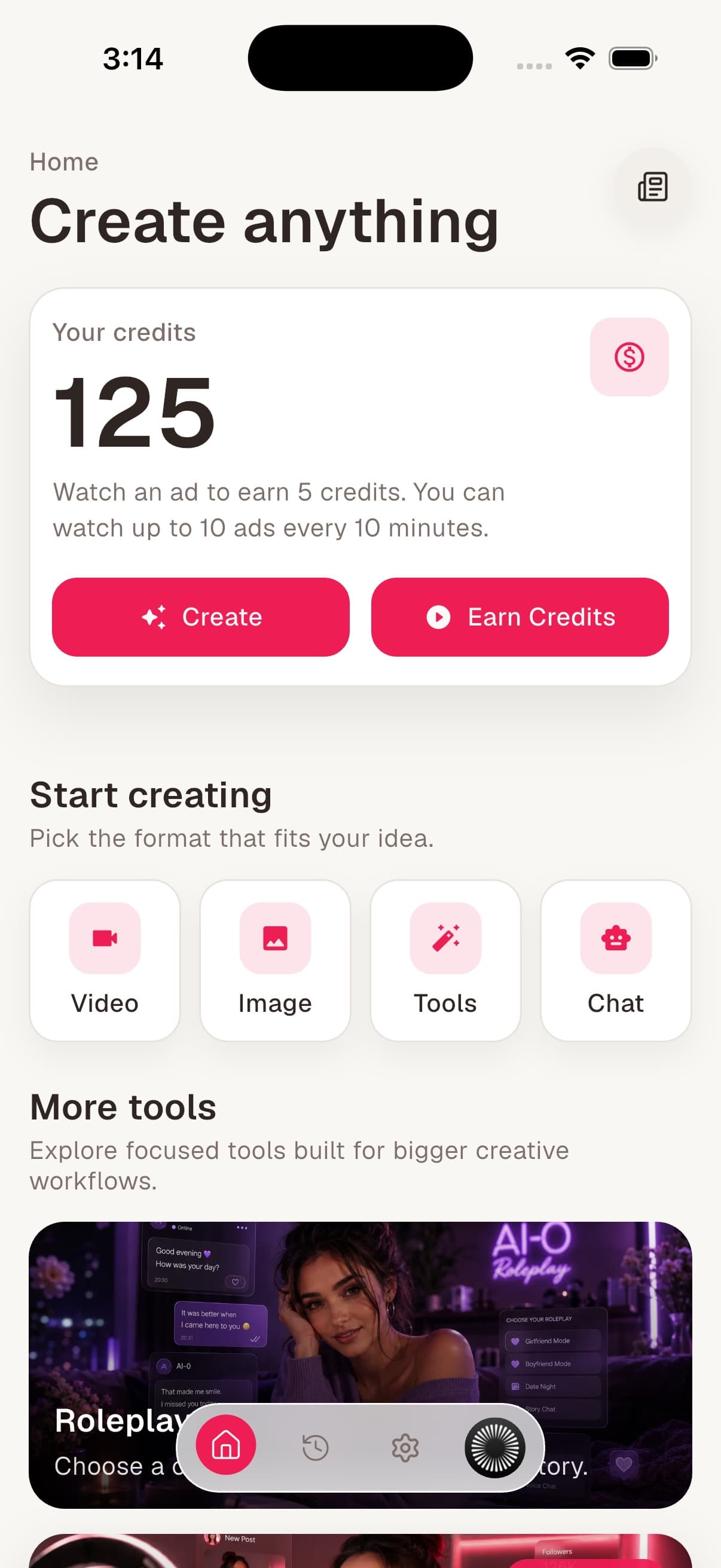
Our test screen offered 5 credits per ad and up to 10 ads every 10 minutes. That is enough information to plan instead of tapping blindly. If an image setup costs 35 credits, for example, you know the size of the gap before opening the form.
The app may pause rewards briefly or stop you from stacking a very large free balance. Use the credits you have, then earn more. For a closer look at the reward flow, read the separate guide to earning free AI-0 credits.
3. Choose Image or Video
Tap Create, or use the Image and Video shortcuts in the "Start creating" row. Choose the format based on what you need now. Starting with a still image is usually cheaper and faster when you are still finding the look of a character, product, or scene.
A practical sequence is to make the image first, settle on the composition, and then use that image with a compatible image-to-video model. This reduces the chance of spending video credits on a scene you did not want in the first place.
4. Select a model and read its requirements
Tap the model row to see the available choices. A model is more than a style preset. It decides which inputs are accepted, which aspect ratios and durations are available, and how many credits the job will use.
Read any note above the model field. During our test, one video model clearly said it was image-to-video only and gave an average generation time. That small note can save a lot of frustration. If you want to start from words alone, choose a model that supports text-to-video. If you already have a strong still image, image-to-video may give you more control.
5. Write a prompt that gives the model a job
A useful prompt names the subject, the setting, the visual treatment, and the detail that matters most. Video prompts should also name the movement. You do not need a wall of adjectives. In fact, shorter prompts are easier to revise because you can tell what each change did.
For an image, try: "A tiny neighborhood bakery at sunrise, warm window light, hand-painted sign, candid street photography."
For a video, try: "Slow camera push toward a tiny neighborhood bakery at sunrise, warm light spilling onto the sidewalk, one cyclist passes in the background."
6. Set the format and review the final cost
Choose the aspect ratio for the place where the content will be used. A 9:16 frame fits vertical short-form video, 16:9 fits a standard landscape player, and 1:1 is useful for a square post. For images, quality and reference-image controls can also change the job.
Then look at the Generate button. That number is the important one. A model row may show a base cost, while duration, resolution, or other settings change the total. Do not assume the first number you saw is the final price.
7. Generate, review, and save
Tap Generate once the prompt, settings, and final credit amount look right. Keep the first attempt. Even a miss tells you something: perhaps the framing was wrong, the motion was too busy, or the subject needed a clearer description. Change one or two things for the next attempt instead of rewriting everything.
Step-by-step: make a free AI image
- Open the Image generator from Home.
- Tap the model row and choose a model you can afford.
- Describe one clear subject and its setting.
- Choose an aspect ratio based on where the image will be posted.
- Select the quality level and add a reference image only if the model supports it.
- Read the final credit cost in the Generate button.
- Generate, inspect the result, and revise the prompt with a specific change.
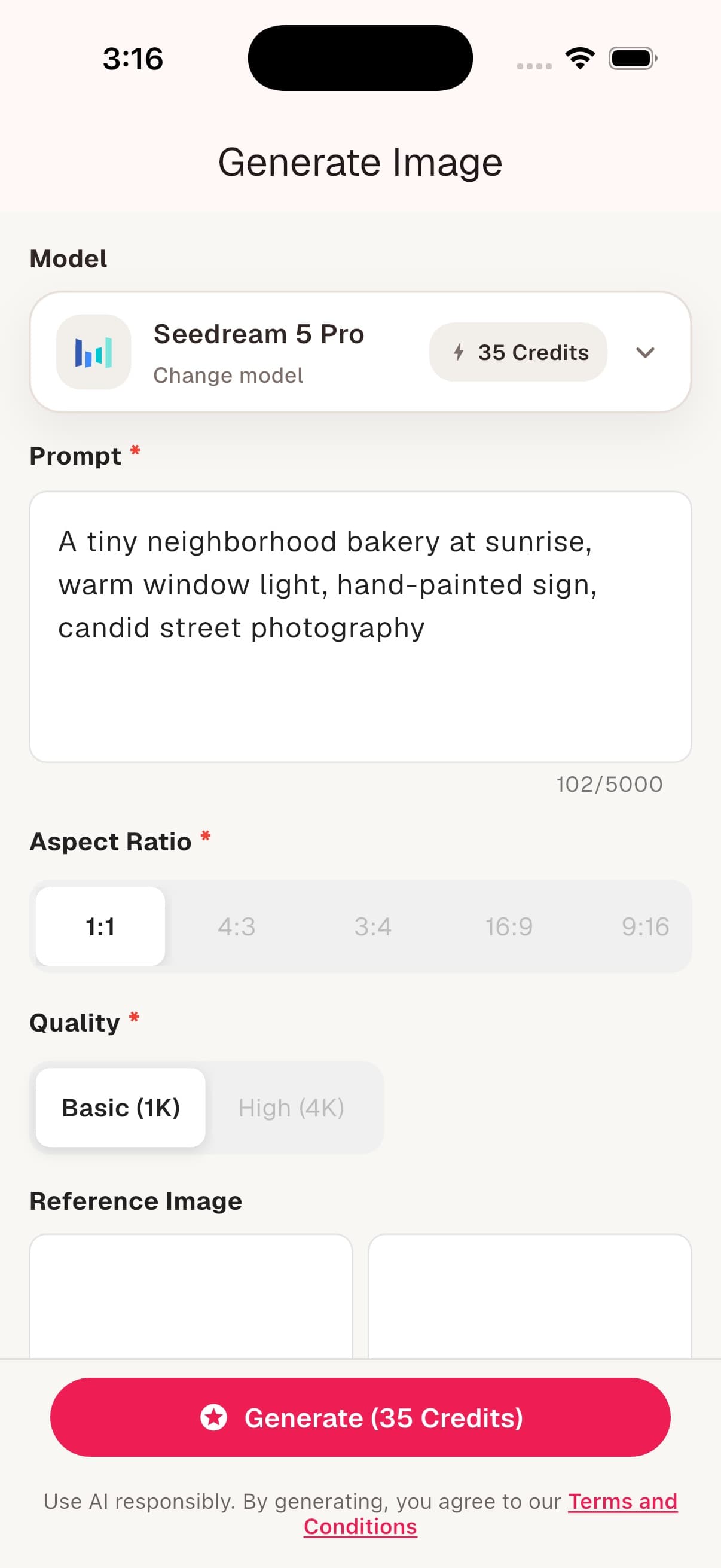
Notice how little guesswork is hidden here. The model name is visible, the prompt stays editable, the aspect ratio and quality sit in the same form, and the final price is on the button. If 35 credits is more than you want to spend on a first test, change the model or settings before you generate.
A prompt formula that is easy to revise
Use this order: subject + place + light + composition + visual treatment. It is a guide, not a law. Leave out anything that does not matter.
- Subject: a ceramic robot watering basil seedlings
- Place: on a narrow apartment balcony
- Light: soft light after rain
- Composition: eye-level, medium shot
- Visual treatment: quiet editorial photography
Put together: "A ceramic robot watering basil seedlings on a narrow apartment balcony, soft light after rain, eye-level medium shot, quiet editorial photography."
For more examples, use the full guide to writing better AI image prompts.
Step-by-step: make a free AI video
- Open the Video generator from Home.
- Choose a model that supports text-to-video or image-to-video, depending on your input.
- Describe the scene, subject movement, and camera movement.
- Choose the shortest duration that can express the idea.
- Select the aspect ratio for the final platform.
- Review any mode controls and the final credit amount.
- Generate, then judge motion and continuity before changing the prompt.
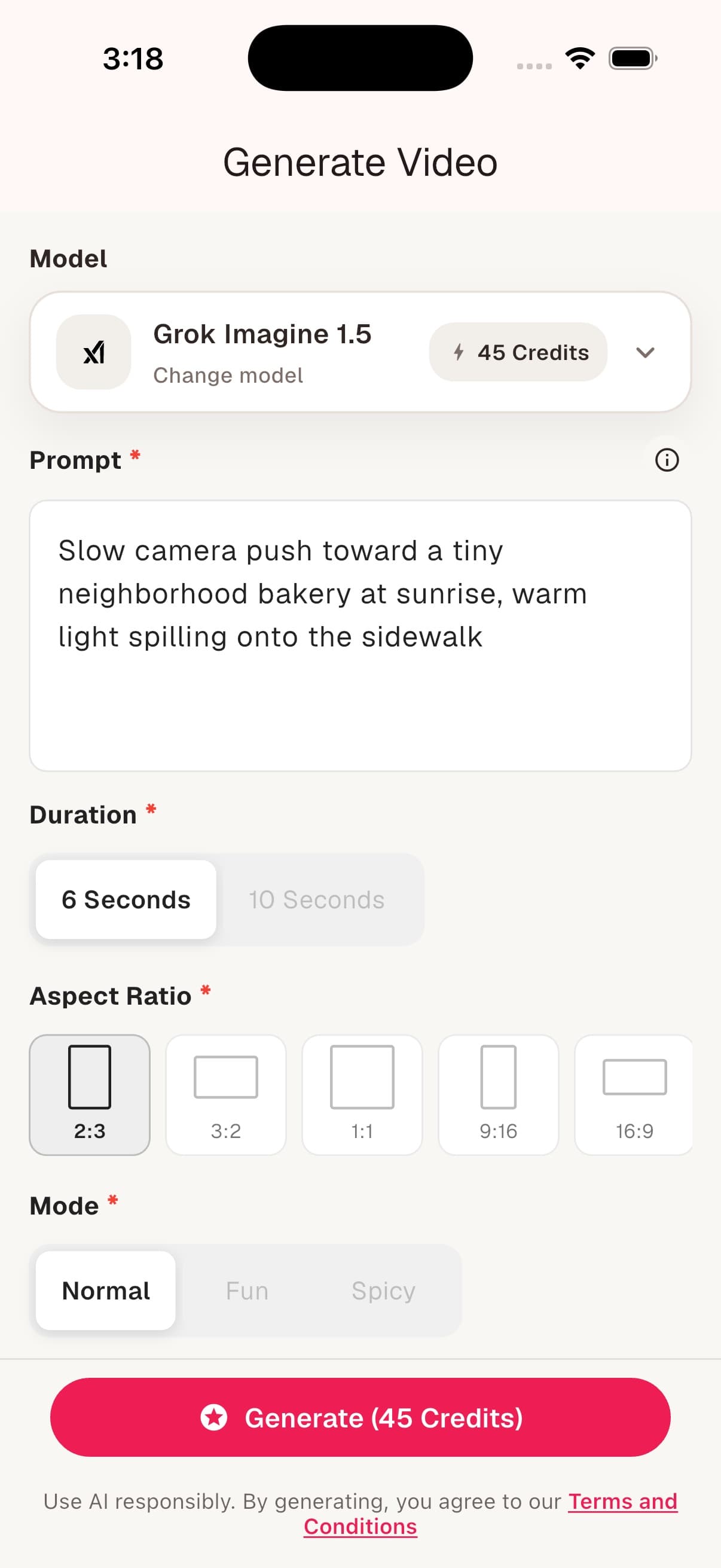
The video prompt in this example starts with camera movement because motion is the part a still-image prompt does not cover. "A bakery at sunrise" describes a frame. "Slow camera push toward the bakery as a cyclist passes" describes a shot.
Keep the first video small
A six-second test is often enough to learn whether the model understands the scene. Long clips cost more and give continuity problems more time to appear. First test the subject, direction of movement, and camera behavior. Extend the idea only after those pieces work.
If you begin with an image, ask for motion that respects it: "The curtains move gently, steam curls from the coffee cup, and the camera stays locked." That is usually clearer than asking every object in the frame to move at once. The text-to-video guide has more prompt patterns.
How to make free credits last longer
Free credits feel less scarce when each generation answers a question. "Will the product read clearly in a square crop?" is a useful question. "Let us see what happens" can be fun, but it is an expensive way to learn.
- Draft outside the form. Write two or three prompt versions before spending credits.
- Use images to find the look. Lock the subject and composition before paying the higher video cost.
- Start with basic quality. Use higher resolution after the idea works.
- Test a short duration. Confirm motion before extending the clip.
- Change one variable. You will know whether the new camera move or lighting note helped.
- Read the button. The final credit total belongs to the exact settings on screen.
A repeatable no-subscription workflow
Here is the workflow I would use for a social post when there is no deadline breathing down my neck. Earn a small batch of credits. Generate one square image at basic quality. Fix the composition with a second attempt only if needed. Then move the better image into a short image-to-video test. It is slower than throwing credits at five ideas, but far less wasteful.
For a larger project, split the work across days. Use one session for visual development, another for motion tests, and a final session for the polished version. The ad-supported model suits patient iteration better than last-minute bulk production. That is a real tradeoff, and it is still a good one when your budget is zero.
Common problems and what to do
The Earn Credits button is temporarily unavailable
Wait for the cooldown or reward window to reset, then try again. Ad inventory can also vary by region and time. If you already have a high credit balance, use some credits before trying to earn more.
The video model asks for an image
You selected an image-to-video model. Upload a reference image, or open the model picker and choose a text-to-video option. The note near the top of the form should tell you which input is supported.
The Generate button costs more than expected
Check duration, quality, resolution, mode, and any extra controls. The amount on the model row may be a base price. The amount on the Generate button reflects the current setup.
The result is close, but not usable
Name the visible error. "Make it better" gives the model nothing concrete to fix. Try "keep both hands in frame," "remove the camera shake," or "move the sign above the door." Preserve the parts that already work.
Privacy and responsible use
Do not upload private documents, confidential client material, or images you do not have permission to use. AI-0 sends prompts and media to the model needed to produce the creation. Review the privacy policy and the model requirements before using sensitive source material.
Generated media still needs a human check. Look for distorted text, inconsistent faces, impossible reflections, and misleading details before publishing. If a creation depicts a real event or person in a way viewers could misunderstand, label it clearly.
Frequently asked questions
Can I really generate AI videos and images for free with AI-0?
Yes. AI-0 has an ad-supported route that lets free users earn credits and spend them on image or video generations. A paid subscription is not required for that route. Ad availability, reward windows, model prices, and generation requirements can change, so check the amount shown in the app before you start.
How did AI-0 reach over 100,000 image and video generations?
AI-0's internal generation total passed 100,000 image and video creations in under two months. Free credits likely played a large part. People could also switch models, revise an image, and turn a still into a video without leaving the mobile app. This is a creation count, not a user count or an independently audited figure.
Does free mean I can make unlimited AI content instantly?
No. There is no fixed lifetime creation quota in the earn-and-create loop, but each generation costs credits. Rewarded ads can have cooldowns or temporary limits, and some models cost more than others. Use the credits you earn, return when rewards are available, and repeat without committing to a monthly plan.
How many credits do I earn for watching an ad?
During our hands-on check on August 9, 2026, the AI-0 iOS home screen offered 5 credits per rewarded ad and up to 10 ads every 10 minutes. These values are controlled by the app and may change. The current reward and availability shown on your home screen are the amounts that apply to you.
Do I need a credit card to use the free route?
No credit card is needed to earn credits from optional ads and use those credits for an eligible generation. Paid credit packs and plans are available for people who prefer them, but they are separate from the free ad-supported flow.
Can I create from text and from an existing image?
Yes, depending on the model. Some models accept a text prompt, some add reference-image controls, and some video models require an image rather than supporting text-to-video. Read the note above the model settings before choosing your input.
Why does the final credit cost differ from the model card?
The model card can show a base cost. Duration, quality, resolution, aspect ratio, or other options may change the total. Treat the amount inside the Generate button as the final price for the settings currently selected.
Where can I download the AI-0 app?
AI-0 is available for iPhone and iPad from Apple's App Store and for Android from Google Play. The app is free to download. It includes optional in-app purchases, but you can use the ad-supported credit route without choosing a paid plan or entering a credit card.
The bottom line
If you want to generate AI images and videos completely free in 2026, AI-0 gives you a workable route. Watch an optional ad, receive credits, choose a model, and check the final cost before you generate. It is not instant infinite compute. It is a repeatable way to create without committing to another monthly bill.
Start with one image and one clear idea. You will learn more from a careful 35-credit test than from a folder full of random generations. When the image works, turn it into a short clip. That is enough to make something useful without adding another monthly bill.
Download AI-0 for free
Start on iPhone, iPad, or Android. You can earn credits in the app before deciding whether you ever want a paid option.
Create on your phone with AI-0
Watch a short ad when you need credits, choose an image or video model, and create without a monthly subscription.