How to turn an AI image into a video for free
Turn a still image into an AI video for free with AI-0. Follow the real app workflow, write a useful motion prompt, and fix common generation problems.
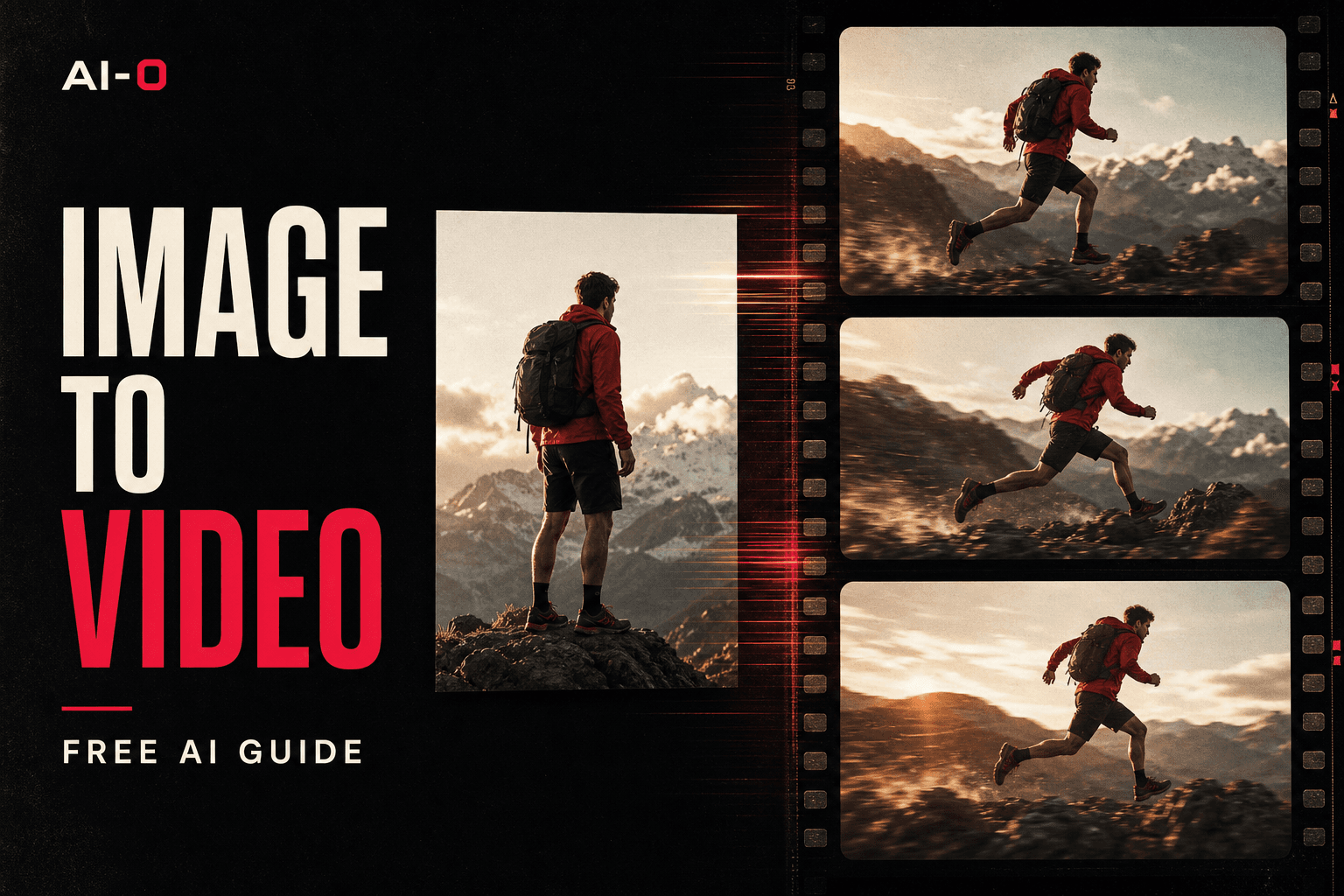
You can turn an image into a video for free in AI-0 by earning credits from optional ads, choosing Video, uploading your picture, and writing a short motion prompt. The most useful prompt explains what should move and how the camera should behave. You do not need a monthly subscription.
The first prompt people try is often far too busy: the coat, the street, the weather, the lens, and every light in the frame. Most of that information is already in the picture. The useful part may be only seven words: “She turns slowly toward the camera.” Thinking in terms of motion, rather than rewriting the picture, makes the tool easier to use.
This guide walks through the process inside AI-0 and points out the choices that usually make the biggest difference. AI-0 is available on the App Store and Google Play.
What “free image-to-video AI” means in AI-0
AI video costs real computing time, so “free” deserves a plain explanation. AI-0 gives you credits and lets you earn more by choosing to watch short ads. Different video models use different amounts of credits. There is no required subscription, but this is not a promise of endless instant generations with no waiting or limits.
That trade is useful if you make clips occasionally, want to test an idea before paying for a larger workflow, or simply dislike adding another monthly bill. You can read the full breakdown in our guide to earning free AI-0 credits.
How to turn an image into a video with AI-0
1. Open AI-0 and check your credits
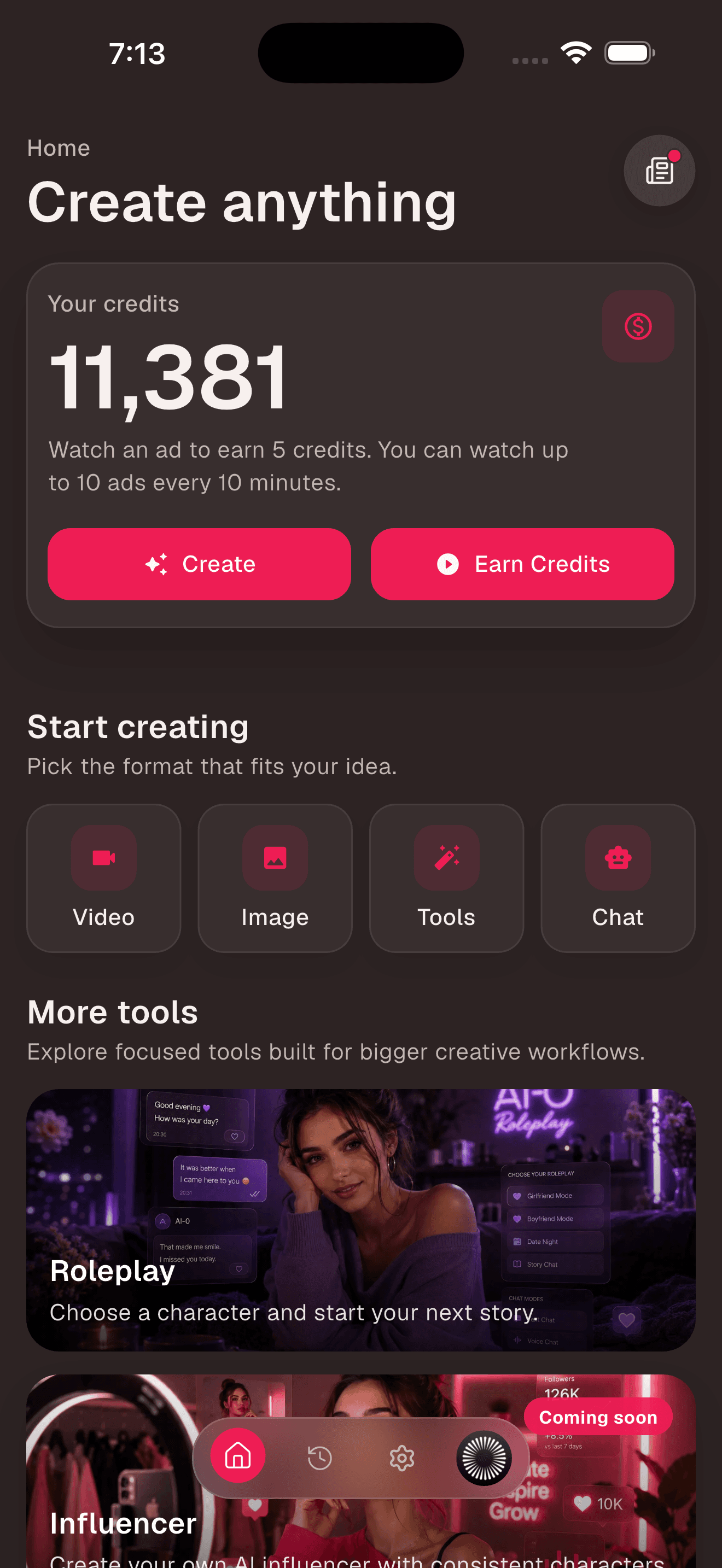
On the Home screen, your current balance appears near the top. If you need more, tap Earn Credits and choose an available ad reward. When you are ready, tap Video under Start creating.
2. Choose an image-to-video model
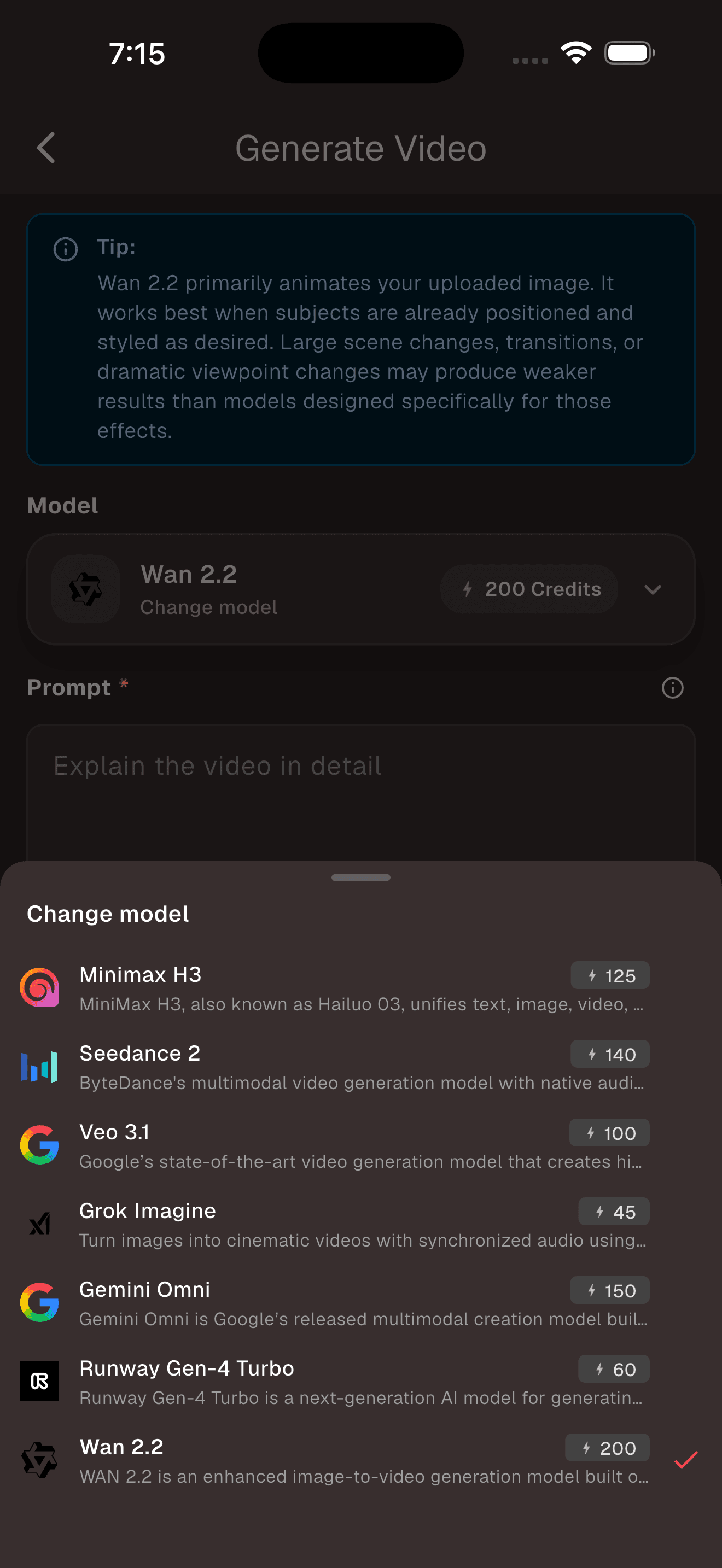
The Generate Video screen opens with a model already selected. Tap the model row to see the current choices and their credit costs. Read the note under each model rather than picking the most expensive name by reflex. Some models are built mainly to animate an uploaded image; others are better when you need a larger scene change or native audio.
3. Upload the cleanest version of your image
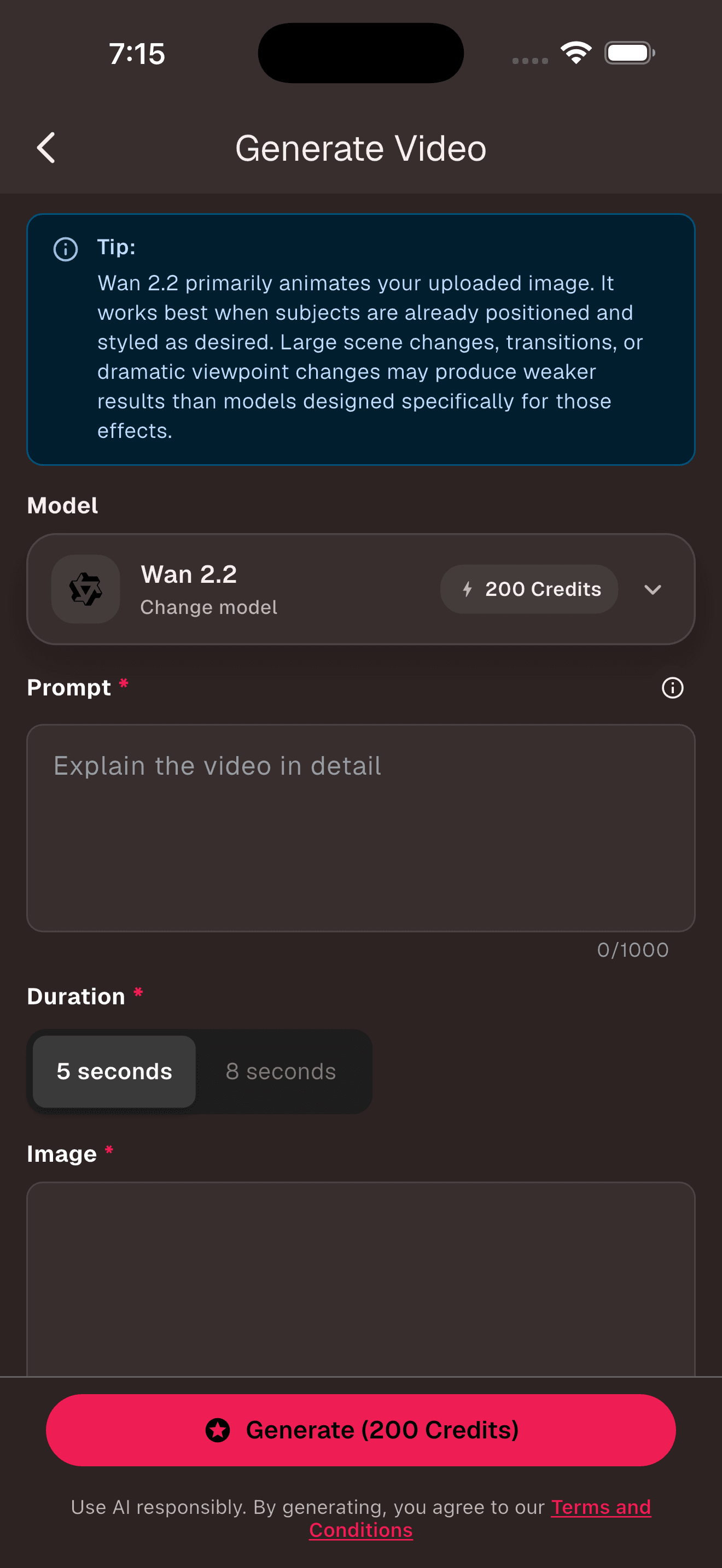
A good source image does a surprising amount of the work. Use the highest-quality copy you have. The subject should be easy to identify, and anything you want to move should be fully in frame. If a person's hand is already cut off, the video model has to invent it when the arm moves. Sometimes that works. Often it looks strange.
Crop for the destination before uploading. A vertical source is the sensible choice for TikTok, Instagram Reels, and YouTube Shorts. A landscape image fits a website header or a standard YouTube video better.
4. Write a motion prompt, not another image prompt
The prompt box says “Explain the video in detail,” but detail should have a job. Describe the main movement, camera movement, pace, and the parts of the scene that should remain stable. One clear action usually beats four competing actions.
| Source image | Image-to-video prompt |
|---|---|
| Portrait | She takes one slow breath and looks toward the window. Gentle push-in. Hair moves slightly. Keep facial features stable. |
| Product photo | The bottle rotates a quarter turn as a narrow light passes across the label. Locked camera. Clean, slow studio motion. |
| Landscape | Low clouds drift across the ridge. Grass moves in a light wind. Slow camera glide to the right. No sudden zoom. |
| Illustration | The paper boat floats forward while tiny window lights flicker. Subtle parallax between foreground and skyline. |
5. Choose the duration and generate
Start short. A focused five-second clip is easier to control than a longer shot with several events. Check the credit cost shown on the Generate button, then start the generation. AI-0 saves completed creations in your history, where you can review and download them.
6. Judge the motion before judging the polish
Watch the whole clip twice. On the first pass, look at the main action. On the second, watch the edges: fingers, jewelry, lettering, background faces, and objects entering the frame. If the action is right but one detail wobbles, simplify the motion before replacing the source image. If the entire composition drifts, go back to a cleaner image with more space around the subject.
Why image-to-video generations go wrong
Most weak clips are not caused by a “bad prompt” in some abstract sense. They come from a mismatch between the picture and the requested movement.
- The prompt asks for a new scene. Image-to-video is best at movement inside the scene you supplied. A beach becoming a spaceship interior is a much harder job.
- Too much happens at once. A subject walking, turning, talking, and changing clothes gives the model several chances to lose consistency.
- The camera move is too aggressive. Fast orbits reveal parts of the world that were never visible in the still image.
- Text is expected to remain perfect. Small labels and signs can warp as the frame changes. Keep important copy out of the generated shot and add it later in an editor.
- The crop fights the destination. Converting a wide landscape into a vertical social clip can remove the very detail you wanted to animate.
A simple prompt formula that is actually useful
Use this as a starting point, then delete anything that does not apply:
[Main subject] [one clear movement]. [Camera behavior]. [Environmental motion]. [Pace]. Keep [important feature] stable.
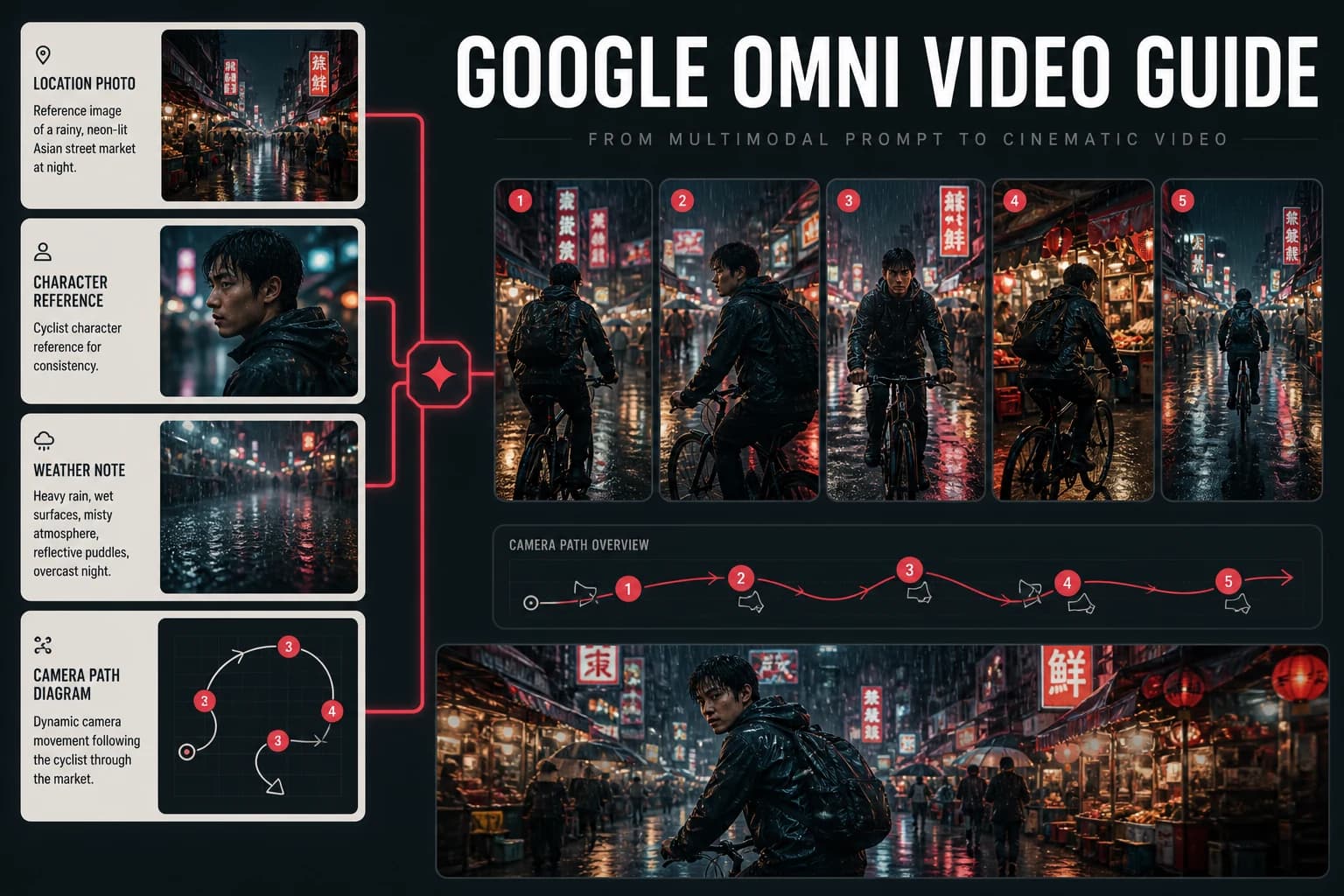
For example: “The cyclist looks over her shoulder as rain falls. The camera tracks beside her at the same speed. Reflections slide across the wet road. Natural motion. Keep her face and bicycle frame stable.” It is specific without trying to direct a whole film in one shot.
Frequently asked questions
Can I turn an image into a video with AI for free?
Yes. AI-0 lets you earn generation credits by choosing to watch short ads. Select Video, upload a still image, describe the motion, and generate a clip without starting a monthly subscription.
What image works best for AI image-to-video generation?
Use a sharp image with a clear subject, enough room around moving objects, and no important details cut off at the edge. A source image already framed for the final video usually needs less correction.
What should an image-to-video prompt include?
Describe movement, camera behavior, pace, and anything that should stay still. The image already shows the subject and setting, so repeating every visible detail usually adds little value.
Does free mean unlimited instant video generation?
No. AI-0 uses an ad-supported credit system. You can keep earning free credits when rewards are available, but each model has a credit cost and generation still takes processing time.
The short version
Pick a strong image, ask for one believable movement, and begin with a short clip. That is the whole trick, if there is one. AI-0 makes the experimenting affordable through ad-earned credits; your source image and restraint do the rest. For a broader introduction, continue with our complete free AI image and video guide.
Create on your phone with AI-0
Watch a short ad when you need credits, choose an image or video model, and create without a monthly subscription.
 Download on the App Store
 Get it on Google Play